

Automating Sequential GS1-128 Labels from Excel
In modern supply chain management, logistics, and retail, compliance is everything. If your business relies on GS1-128 barcodes for tracking, shipping, and inventory, you already know the strict formatting rules required by trading partners and major retailers.
Manually creating these complex, multi-application identifier (AI) barcodes one by one is a recipe for costly human errors. What happens when you need to print hundreds—or thousands - of sequential GS1-128 labels for a major shipment?
iBarcoder offers a powerful, seamless solution. By combining the data-handling power of Microsoft Excel with iBarcoder's advanced batch-generation capabilities, you can automate sequential GS1-128 barcode printing in just a few clicks.
Why GS1-128 Automation is Critical for Your Business
The GS1-128 barcode standard is exceptionally versatile because it encodes various types of data—such as GTIN (01), batch/lot number (10), production date (11), expiration date (17), and serial number (21) - using application identifiers.However, constructing these strings manually while maintaining an accurate sequence (like incrementing serial numbers or handling dynamic weights and dates) is tedious and error-prone. A single misplaced parenthesis or incorrect AI digit can result in chargebacks, rejected shipments, or inventory mismatches.
Automating the process ensures:
- • 100% Compliance: Meeting exact GS1 formatting and checksum standards every time.
- • Massive Time Savings: Turning hours of manual data entry into a fast, automated print run.
- • Error-Free Sequencing: Automatically incrementing serial numbers, quantities, or tracking codes without manual intervention.
How to Automate Sequential GS1-128 Labels Using iBarcoder and Excel
iBarcoder makes it remarkably easy to link your database to your barcode design. Follow these simple steps to set up your automated workflow:Prepare Your Excel Spreadsheet
Organize your data neatly in Microsoft Excel, or Numbers on Mac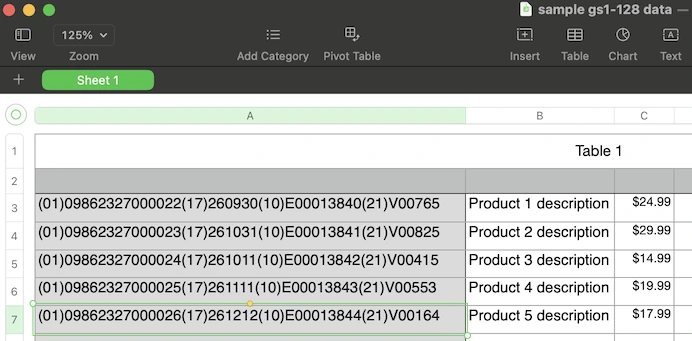
- • Create your GS1-128 barcode data from components(e.g., GTIN (01), BatchNumber (10), ExpirationDate (17), SerialNumber (21)).
- • Ensure your serial numbers or dynamic fields are set up in a clear sequence down the rows.
- • Tip: You can also use Excel formulas to pre-format your complete GS1 string if preferred, though iBarcoder can also help concatenate fields.
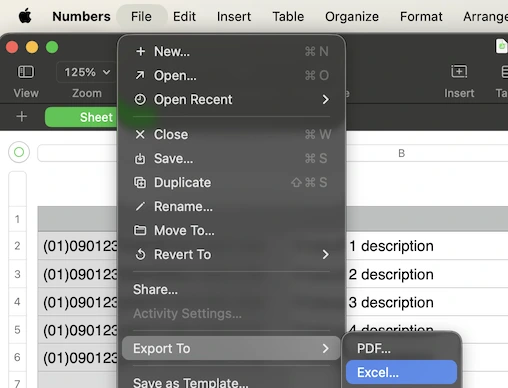
- • Save the file as .xlsx.
Design Your GS1-128 Template in iBarcoder
Open iBarcoder and select the barcode object, or add a new one using the Barcode tool on the top of the window.- 1. Select the GS1-128 barcode symbology from the menu in the Barcode Properties panel on the right
- 2. Customize the physical size, font, layout, and visual elements of your label to fit your specific thermal printer labels or sheets.
- 3. Add any accompanying human-readable text, company logos, or product descriptions to the label canvas.
Link Excel to iBarcoder via Data Import
Instead of typing data manually, connect your Excel file to your iBarcoder template:- • Use iBarcoder’s built-in Data Import.
- • Map your Excel columns to the corresponding barcode fields and text elements in your template.
- • Preview how the data populates across your sequence.
Generate and Print Sequentially
Once connected, iBarcoder will read your Excel rows and dynamically generate the sequential GS1-128 barcodes in batch. You can now:- • Review the batch on-screen to ensure formatting accuracy.
- • Export the entire batch to high-resolution image formats (PDF, PNG, TIFF, EPS) for digital archiving or third-party printing.
- • Send the batch directly to your printer for immediate production-line use.
Key Features of iBarcoder for GS1-128 Labeling
- • Full GS1-128 Support: Automatically calculates check digits and formats parentheses around application identifiers correctly.
- • Advanced Sequential Numbering: Easily increment serial numbers, batch codes, or dates dynamically across thousands of rows.
- • Direct Excel & CSV Integration: Import data seamlessly without complicated scripting or programming knowledge.
- • Flexible Layout Designer: Design professional product labels, shipping labels, and pallet tags (like GS1-128 SSCC labels) containing barcodes, text, and graphics.
- • Universal Export Options: Save your generated labels in vector or raster formats for compatibility with any printing setup.