

How to create GS1-128 Barcode: A Complete Guide
Welcome to the GS1-128 Barcode Generator page. Whether you are managing supply chain logistics, healthcare inventory, or retail distribution, generating accurate GS1-128 barcodes is essential for compliance and efficient tracking.
Below, you will find everything you need to know about what a GS1-128 barcode is, how to structure your data, and how to create one for your business.
What is a GS1-128 Barcode?
The GS1-128 (formerly known as UCC/EAN-128) is a high-density linear barcode symbology used extensively in global supply chains. It combines standard Code 128 barcodes with Application Identifiers (AIs) - standardized prefixes that define the meaning and format of the data that follows.- • Versatility: Can encode a wide range of data types (weights, dates, batch numbers, and serial numbers).
- • Efficiency: Compresses large amounts of data into a relatively small barcode.
- • Global Standard: Fully compliant with global GS1 system specifications, making it the industry standard for logistics and shipping labels (like the GS1 Logistics Label).
Key Application Identifiers (AIs)
GS1-128 barcodes rely on Application Identifiers in parentheses to tell scanner systems what type of data is being read. Here are some of the most commonly used AIs:| Application Identifier | Description & Format |
| (00) | Serial Shipping Container Code (SSCC) — 18 digits |
| (01) | Global Trade Item Number (GTIN) — 14 digits |
| (10) | Batch or Lot Number — Variable length (up to 20 characters) |
| (15) | Best Before Date (YYMMDD) — 6 digits |
| (17) | Expiration Date (YYMMDD) — 6 digits |
| (310n) | Net Weight (kilograms) — 6 digits |
The full list of Application Identifiers can be found on GS1 site
How to Create a GS1-128 Barcode
Follow these simple steps to generate a compliant GS1-128 barcode for your products or shipments:1. Select Your Application Identifiers:
Determine what information needs to be embedded (e.g., GTIN and Expiration Date).2. Format Your Data:
Combine your AIs and data strings in the correct sequence. Note that some AIs have fixed lengths, while variable-length AIs require a FNC1 (Function 1) character delimiter at the end if they are followed by another data field.Let our sample string include next AIs:
-
Global Trade Item Number (GTIN) - (01)
Batch or Lot Number - (10), and
Serial Number - (21)
3. Generate the Barcode:
Input your formatted string into the iBarcoder, which natively supports GS1-128 and automatically inserts the required FNC1 control characters and Start/Stop codes.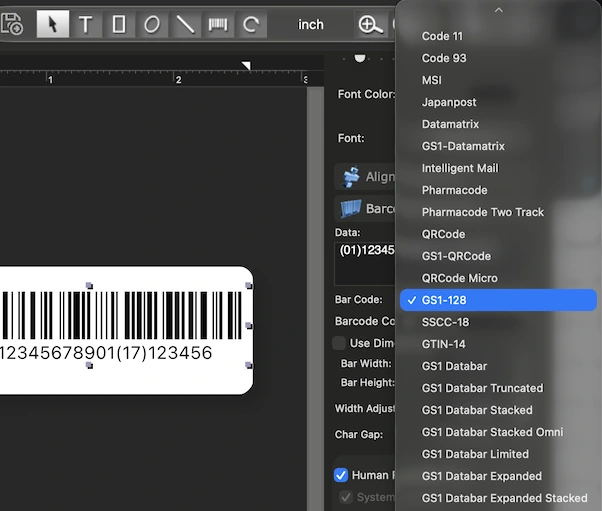
4. Test and Verify:
Print a sample barcode, then scan it using a barcode verifier or industrial scanner to ensure readability before mass production.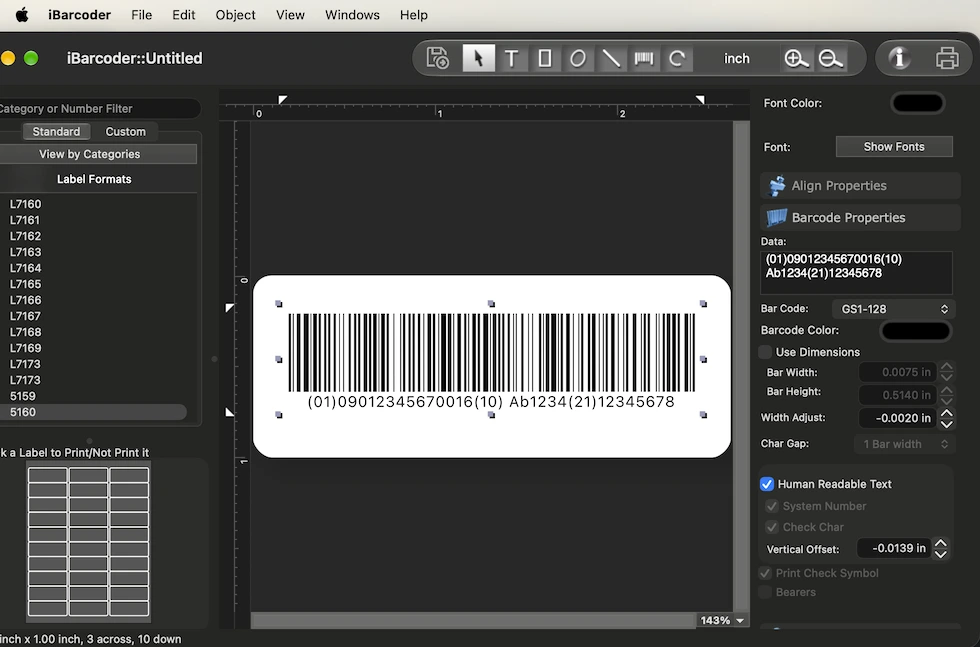
Best Practices for Printing and Scanning
- • Quiet Zones: Ensure there is sufficient blank space (the "quiet zone") on the left and right sides of the barcode to prevent scanning errors.
- • Label Placement: For logistics units, place the barcode in a standardized location on the pallet or carton as specified by GS1 general specifications.
- • Contrast: Always use high-contrast printing—typically a black barcode on a white background. Avoid glossy finishes that create glare.