

Create Interleaved 2 of 5 Barcodes.
Interleaved 2 of 5 (ITF) is a high-density, continuous numeric symbology primarily used in distribution,warehousing, and inventory control (often for outer cartons and shipping containers).
If you are looking for a fast, professional way to generate ITF barcodes for your products or packaging, iBarcoder for MacOS provides a seamless solution. Follow this step-by-step guide to design and export Interleaved 2 of 5 barcodes in minutes.
Install and Launch iBarcoder
1. You will need a iBarcoder application installed on your Mac. Download iBarcoder from the Mac App Store or the official Cristallight website.2. Open the application on your Mac.
Select the Interleaved 2 of 5 Symbology
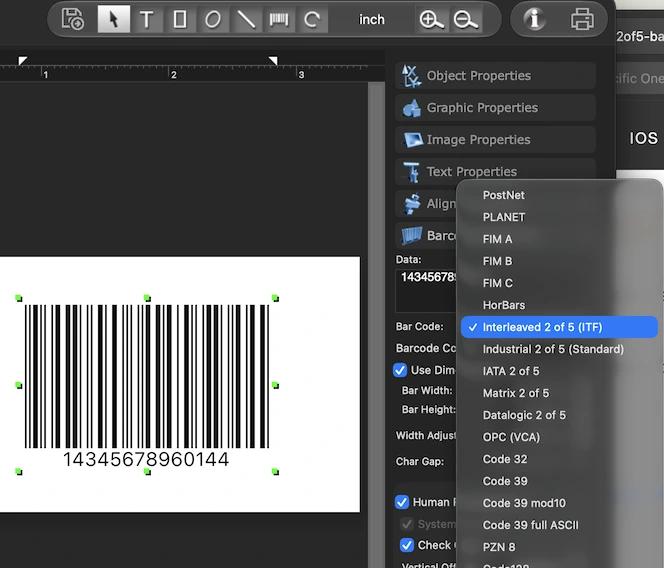
- 1. In the symbology (barcode type) menu or dropdown, locate and select Interleaved 2 of 5.
- 2. Find the Data or Text input field in the Barcode Properties panel.
- 3. Enter the numeric barcode data string to the Data field (e.g., product code, batch number, or tracking digits). ITF barcodes require an even number of digits. If your data string has an odd number of characters, iBarcoder will typically prompt you or automatically pad the data with a leading zero to ensure a valid barcode structure.
- 4. The preview window will instantly render the corresponding Interleaved 2 of 5 barcode graphic based on your input.
Customize the Appearance
iBarcoder allows you to tailor the barcode design to match your packaging or label requirements:- • Dimensions: Adjust the height, width, and bar-to-space ratios. Because ITF relies on interleaving pairs of digits (one in the bars, one in the spaces), maintaining proper quiet zones (margins) is essential for scannability.
- • Text Options: Choose whether to display the human-readable numbers below the barcode, and customize the font style, size, and text alignment.
- • Colors: Modify the foreground (bar) and background colors.
2. Export or Print Your Barcode:
Once you are satisfied with your design, you can use iBarcoder to integrate it directly into your workflow:- • Export as Image: Save the barcode in high-resolution vector or raster formats such as EPS, PDF, TIFF, JPEG, or PNG for use in graphic design software like Adobe Illustrator, InDesign, or Photoshop.
- • Print Directly: Use built-in templates to print sheets of barcodes directly onto standard adhesive label stock (Avery, etc.).
Best Practices for Printing
- • Quiet Zones: Always leave a blank margin (at least 10 times the narrow bar width) on both the left and right sides of the barcode.
- • Placement: Place the barcode on a flat, unobstructed part of the packaging where it won't be folded,creased, or covered by tape.
- • Material Quality: Use durable label materials that won't smudge or fade during shipping, storage, or retail display.
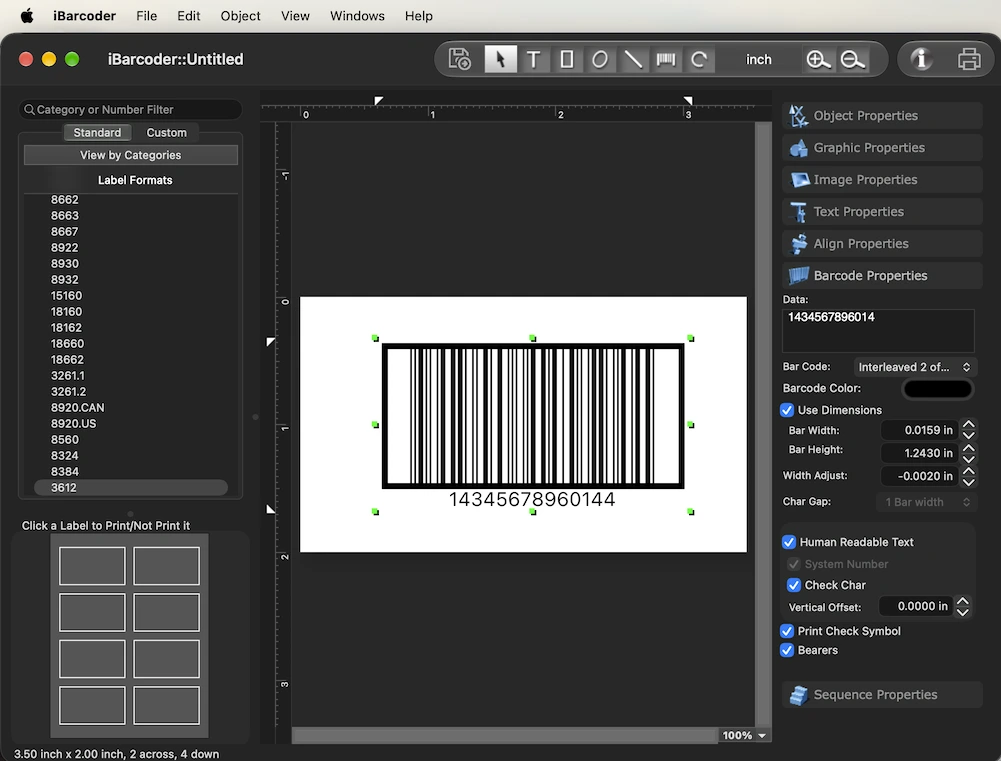
If necessary, consider adding a Bearer Frame (a solid rectangular border around the barcode). This helps prevent edge-distortion errors caused by printing plates on uneven surfaces.