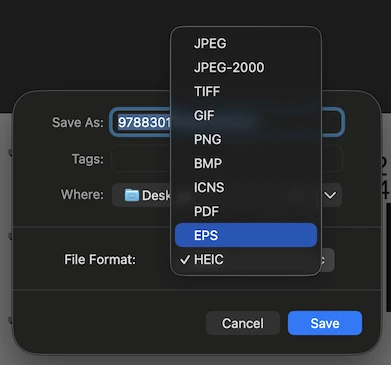
Create ISBN Barcode Vector EPS Files Easily
Publishing a book requires meeting strict industry standards, and ensuring your cover art includes a crisp, scannable ISBN barcode is critical. Raster formats like PNG or JPG can blur during commercial printing, leading to scan errors at distribution centers and bookstores. Generating your barcode as an EPS (Encapsulated PostScript) vector file guarantees clean, infinitely scalable lines at any resolution.
iBarcoder provides an intuitive, professional solution for generating scalable, print-ready vector barcodes.
Why Vector EPS is Best for ISBN Barcodes
- • Infinitely Scalable: EPS vector graphics use mathematical vectors instead of pixels. You can scale your barcode to fit any cover layout without loss of clarity or crispness.
- • Pre-Press & CMYK Ready: Avoid color conversion issues during offset printing by exporting directly in CMYK color modes.
- • Flawless Scannability: Vector files maintain razor-sharp bar edges, ensuring 100% readability by commercial laser and optical barcode scanners.
Why iBarcoder is the Ultimate Barcode Maker
When publishing books, magazines, or retail products, iBarcoder stands out as the premier tool for creating precise, compliant ISBN vector barcodes.| Feature | How iBarcoder Helps |
| Complete ISBN Support: | Generates standard ISBN-13 and legacy ISBN-10 barcodes, including optional 2-digit or 5-digit price add-on supplements. |
| Vector Export Options: | Native export to vector EPS and PDF, as well as high-resolution raster formats (up to 4800 DPI). |
| Design Flexibility: | Customize bar colors, background fills, font styles, dimensions, and human-readable text position. |
| Batch & Sequential Creation: | Generate large batches of sequential barcodes automatically using custom increments or linked data files (.txt, .xlsx). |
| Pre-Press Control: | Adjust bar-width reduction (BWR), add crop/trim marks, and configure RGB or CMYK color spaces for seamless pre-press integration. |
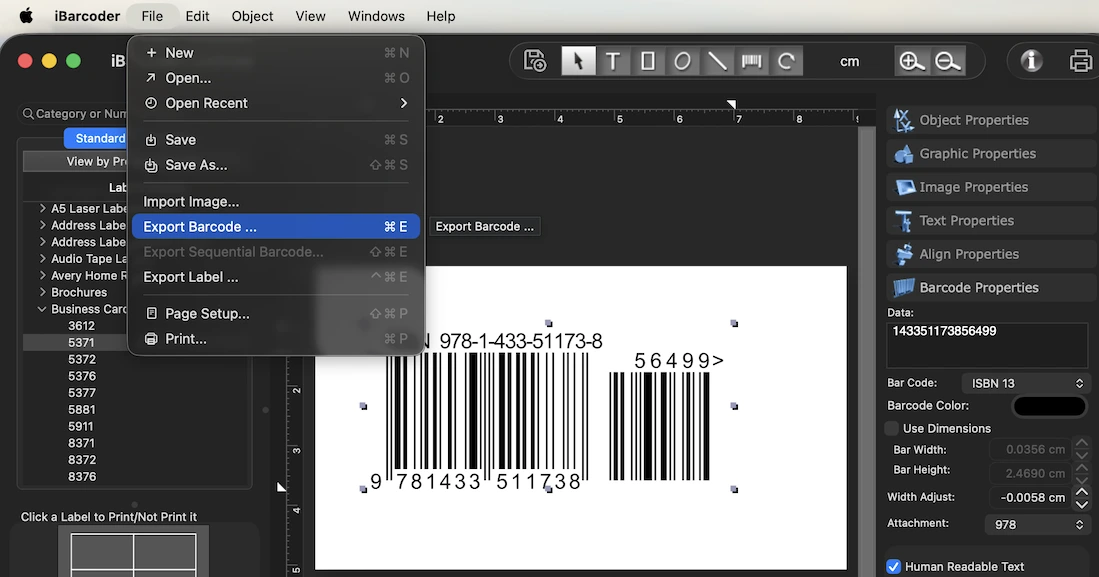
How to Create an ISBN Vector EPS in iBarcoder
You have two primary ways to output your newly generated mass batch:- 1. Select Barcode Type: Launch iBarcoder and choose ISBN (or ISBN-13) from the list of over 60 supported barcode symbologies.
- 2. Enter ISBN Data: Type your 13-digit ISBN into the data panel. Enter your price add-on digits if required; check digits are calculated automatically.
- 3. Customize Attributes: Adjust bar height, scale, font, and colors. Enable CMYK color mode for optimal print setup.
- 4. Export as Vector EPS: Click Export, select EPS as your output format, choose your destination folder, and save your high-resolution vector file.