

Creating ISBN barcodes for self-publishing authors
Writing the book is only half the battle. Once your text is polished and your cover art is ready, there is one tiny, technical detail that stands between you and the shelves of bookstores worldwide: the ISBN barcode.
Here is how you can use iBarcoder to create professional, retail-ready ISBN barcodes that look as good as your prose.
Why Your Book Needs a High-Quality Barcode
Most retailers and distributors (like IngramSpark or local independent shops) require an ISBN-13 barcode to manage inventory and process sales. A "home-made" or low-resolution barcode can lead to scanning errors, which is the last thing you want during a book launch.
Key Benefits of using iBarcoder:
- • Precision: Generates vector-based graphics that won't blur when resized.
- • Compliance: Meets international GS1 and ISO standards.
- • Customization: Adjust fonts, colors, and dimensions to match your cover design.
Step-by-Step: Creating Your Barcode
1. Select the Correct Symbology
Open iBarcoder and navigate to the barcode list. For books, you must use ISBN-13.
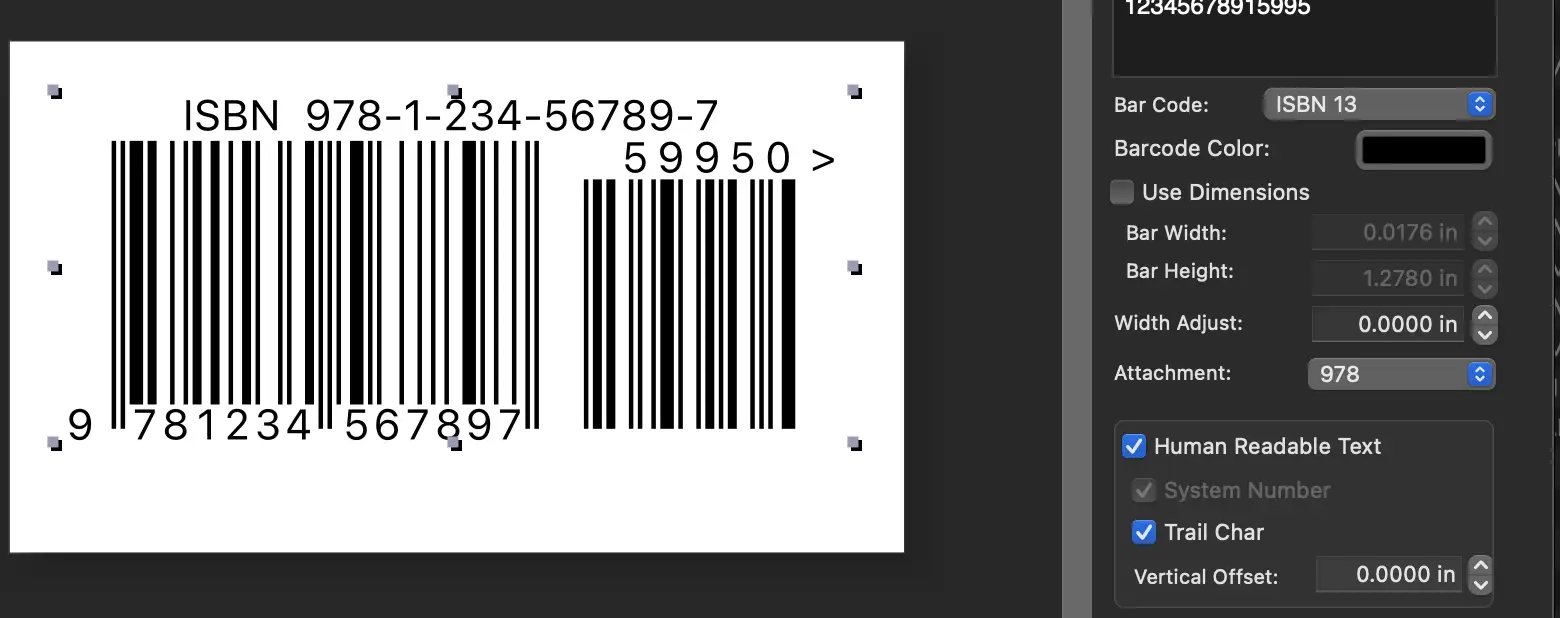
Note: If you want to include the retail price of your book within the barcode itself (common in the US and Canada), select ISBN-13 (w/ EAN-5). This adds a smaller five-digit supplement to the right of the main barcode.
2. Enter Your ISBN Data
Type your 13-digit ISBN into the data field. iBarcoder will automatically calculate the check digit (the last number) to ensure the sequence is valid. If you are using the EAN-5 supplement for pricing:
- • The first digit is the currency indicator (e.g., 5 for USD).
- • The next four digits are the price (e.g., 1995 for $19.95).
3. Customize the Aesthetics
Don’t let a bulky barcode ruin your beautiful back cover. Use the Inspector panel to:
- • Adjust Size: Keep the bar width between 6 and 50 mils to ensure readability.
- • Change Fonts: While the numbers must be legible, you can often change the font style to better suit your book’s branding.
- • Set the "Quiet Zone": Ensure there is enough white space around the barcode so scanners don't get confused by nearby graphics.
Technical Specifications for Print
To ensure your book flies through the checkout line, follow these industry standards:
| Feature | Standard Requirement |
| Color | Black bars on a white background (highest contrast). |
| Standard Size | Approx. 1.5" x 1.0" (100% scale). |
| Resolution | 300 DPI or Vector (PDF/EPS) for crisp edges. |
| Placement | Bottom right quadrant of the back cover. |
Exporting Your Work
Once you are satisfied with the preview, it’s time to move the barcode into your layout software (like Adobe InDesign, Affinity Publisher, or Canva).
- 1. Go to File > Export.
- 2. Choose a Vector Format: We highly recommend PDF or EPS. Unlike JPEGs, vector files can be scaled infinitely without losing quality.
- 3. Import to Cover Design: Place the file on your back cover, ensuring you don't accidentally "squish" or stretch the image, as this can break the barcode's functionality.
Pro-Tip for Authors
Always perform a test scan! Before sending your files to the printer, use a free barcode scanner app on your smartphone to check the exported file on your screen. If your phone can read the 13-digit ISBN correctly, the bookstore’s laser scanner will too. Ready to get your book retail-ready? Launch iBarcoder and generate your professional ISBN today.