

FNSKU Labels for Amazon FBA Using iBarcoder
Selling on Amazon via Fulfillment by Amazon (FBA) requires adherence to labeling standards. Every product you send to an Amazon fulfillment center must carry an FNSKU (Fulfillment Network Stock Keeping Unit)barcode, that allows Amazon to identify you as the seller, and track your inventory accurately.
If you are a Mac user , and looking for a reliable, standalone tool to design, manage, and print your FNSKU labels, iBarcoder is a fantastic utility.
What You Need Before You Begin
- 1. Download and install iBarcoder from the Mac App Store or the official Cristallight website
- 2. Obtain your specific FNSKU string (usually starts with "X00...", along with the corresponding product title and condition text) from your Amazon Seller Central account under Manage Inventory or the Send to Amazon workflow.
- 3. Standard label stock (such as Avery templates compatible with your sheet layout) or rolls for a thermal receipt/label printer (like Dymo or Zebra).
Amazon’s FNSKU Label Specifications
Amazon has strict guidelines for FNSKU barcodes:- • Symbology: FNSKUs are encoded using the Code 128 barcode format (specifically Code 128 subset B or auto).
- • Required Human-Readable Text: The label must display the FNSKU alphanumeric code, the product title, and the condition (e.g., New).
- • Clear Space: Ensure there is adequate blank white space (quiet zones) before and after the barcode lines so scanners can read it smoothly.
Set Up Your Label Template
- 1. Open iBarcoder on your Mac.
- 2. If you use standard sheets (e.g., Avery 21-up or 30-up labels commonly used for FBA), choose an existing label format from the list on the left of the window
- 3. Alternatively, define a custom label size matching your specific thermal printer dimensions (e.g., 1 x 2 inches or 2 x 3 inches).
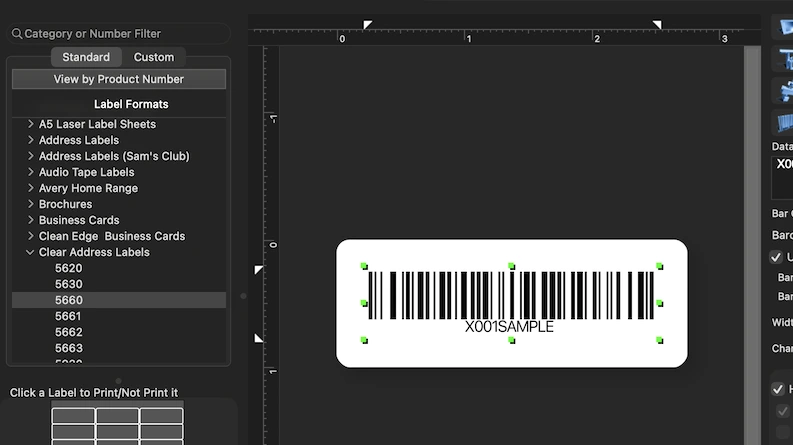
Add the Code 128 Barcode, since Amazon FNSKUs require the Code 128 barcode format
- • Select the Barcode Tool from the toolbar area on the top of the window, and add a new barcode, or click on the existing barcode on your label, and then from the Barcode Properties panel select Code 128 format dropdown list of available symbologies
- • In the data entry field, type or paste your specific FNSKU code (e.g., X0001ABCDE)
- • Adjust the barcode dimensions using the barcode properties controls
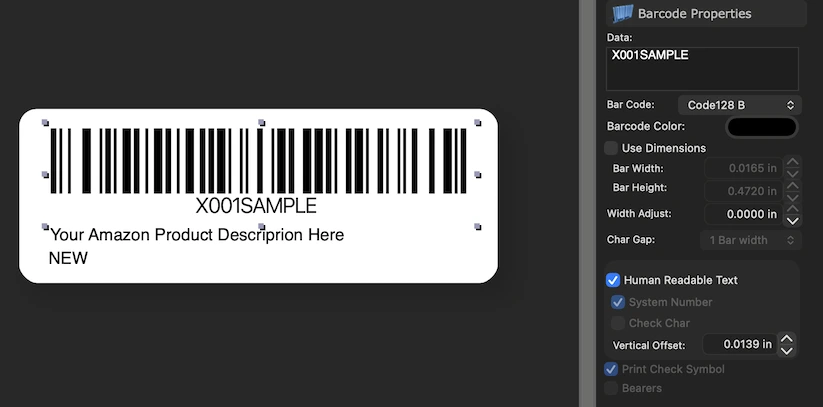
Add the Required Text Elements:
- Amazon mandates that human-readable information accompany the barcode:
- • Click on the Text Box tool on toolbar area, then click on the label area, thus adding a text field
- • Add the following lines:
- 1. FNSKU Human-Readable Text: Repeat the exact FNSKU code below or above the barcode if it isn't automatically generated cleanly by your symbology settings.
- 2. Product Title: A brief, truncated version of your product name so it matches what Amazon expects.
- 3. Item Condition.
- • Format the text using clean, legible sans-serif fonts (like Helvetica or Arial) at a readable size (usually 6pt to 9pt depending on label dimensions).
For Multiple SKUs, use Bulk Generation
- • Prepare an Excel Workbook (.xlsx) file (can be exported from Numbers on Mac), or a simple tab-delimited Text (.txt) file containing your FNSKU codes and product descriptions.
- • Link the data source file to objects on your label under the Sequential Properties.
- • Map your text and barcode objects to the corresponding columns in your spreadsheet to auto-populate batches of distinct labels.
Preview and Print
- • Use the iBarcoder's Live Preview feature to inspect how the final sheet or roll will look.
- • For Thermal Printers: Ensure the correct media size is selected in your macOS printer preferences.
- • If you prefer to double-check or send files to a third-party prep center, export the labels as high-resolution PDF or vector EPS files directly from iBarcoder.